In this tutorial you will learn about Introduction to Oracle Reports Builder, Report
file storage formats, Oracle Reports Builder Tools, Report Wizard, Triggers in Reports, Types of Triggers and Case Study - Creating a Tabular report.
formats, Oracle Reports Builder Tools, Report Wizard, Triggers in Reports, Types of Triggers and Case Study - Creating a Tabular report.Introduction to Oracle Reports Builder
Oracle Reports Builder is a powerful enterprise reporting tool used to build reports that dynamically retrieve data from the database, format, display and print quality reports. Reports can be stored in File or Database (Report Builder Tables).
from the database, format, display and print quality reports. Reports can be stored in File or Database (Report Builder Tables).Report file storage formats
.rdf Report
• Binary File Full report definition (includes source code and comments)
• Modifiable through Builder. Binary, executable Portable if transferred as binary.
• PL/SQL recompiles on Open/Run
• Binary File
Full report definition (includes source code and comments)• Modifiable through Builder. Binary, executable Portable if transferred as binary.
• PL/SQL recompiles on Open/Run
.rep Report • Binary Run-Only File
• No source code or comments. Not modifiable binary, executable.
• Report Executables
• No source code
or comments. Not modifiable binary, executable.• Report Executables
RWBLD60 Report Builder
RWRUN60 Report Runtime
RWCON60 Report Converter/Compiler [File => Administration => Compile (rdf to rep)/Convert]
RWRUN60 Report Runtime
RWCON60 Report Converter/Compiler [File => Administration => Compile (rdf to rep)/Convert]
Oracle Reports Builder Tools
Oracle Reports Builder comes with the following components
• Object Navigator
• Property Palette
• Data Model Editor
• Layout Model Editor
• Parameter Form Editor
• Object Navigator
• Property Palette
• Data Model Editor
• Layout Model Editor
• Parameter Form Editor
Object Navigator
The Object Navigator shows a hierarchical view of objects in the report. Each item listed is called a node and represents an object or type of object the report can contain or reference.
The Object Navigator shows a hierarchical view of objects in the report. Each item listed is called a node and represents an object or type of object the report can contain or reference.
Property Palette A Property Palette is a window that displays the settings for defining an Oracle reports object.
Data Model Editor
To specify data for a report, a data model should be defined. A data model is composed of some or all of the following data definition objects.
To specify data for a report, a data model should be defined. A data model is composed of some or all of the following data definition objects.
Queries Queries are SQL Select statements that fetch data from the oracle database. These statements are fired each time the report is run.
Select statements that fetch data from the oracle database. These statements are fired each time the report is run.
Groups
Groups determine the hierarchy of data appearing in the report and are primarily used to group columns selected in the query. Oracle report automatically creates a group for each query.
Groups determine the hierarchy of data appearing in the report and are primarily used to group columns selected in the query. Oracle report automatically creates a group for each query.
Data Columns Data columns contain the data values for a report. Default data columns, corresponding to the table columns included in each query’s SELECT list are automatically created by oracle reports. Each column is placed in the group associated with the query that selected the column.
Formula Columns Formulas can be entered in formula columns to create computed columns. Formulas can be written using PL/SQL syntax. Formula columns are generally preceded by CF_ to distinguish from other columns.
Summary Columns Summary columns are used for calculating summary information like sum, average etc. This column uses a set of predefined oracle aggregate functions. Summary columns are generally preceded by CS_ to distinguish them from other columns.
Data Links
Data links are used to establish parent-child relationships between queries and groups via column matching.
Data links are used to establish parent-child relationships between queries and groups via column matching.
Layout Model Editor A report layout editor contains the following layout objects
Frames
Frames surround other layout objects, enabling control of multiple objects simultaneously
Frames surround other layout objects, enabling control of multiple objects simultaneously
Repeating Frames Repeating frames acts as placeholders for groups (I.e repeating values) and present rows of data retrieved from thedatabase. Repeating frames repeat as often as the number of rows retrieved.
. Repeating frames repeat as often as the number of rows retrieved.
Fields Fields acts as placeholders for columns values. They define the formatting attributes for all columns displayed in the report.
Boilerplate
Boilerplate consists of text (label of the column) and graphics that appear in a report each time it is run.
Boilerplate consists of text (label of the column) and graphics that appear in a report each time it is run.
Parameter Form Editor Parameter form is a runtime form used to accept inputs from the user.
Parameters
Parameters are variables for a report that accept input from the user at runtime. These parameter values can then be used in the SQL select statements to retrieve data conditionally. Oracle reports creates a set of system parameters at runtime namely report destination type, number of copies etc.
Parameters
Parameters are variables for a report that accept input from the user at runtime. These parameter values can then be used in the SQL select statements to retrieve data conditionally. Oracle reports creates a set of system
parameters at runtime namely report destination type, number of copies etc.Report Wizard
• When we create a default Tabular Report using report wizard, the wizard will take you through the below mentioned pages
• Report Style Tabular, Form-Like, Mailing Label, Form Letter, Group Left, Group Above, Matrix, Matrix with Group
• Query Type Choose whether to build a SQL query or an Express query.
• Data Enter a SELECT statement to retrieve the report data
• Displayed Fields Select the fields that you want to display in the output.
• Fields to Total Select the fields that you want to summarize.
• Labels for Fields Alter the labels that appear for each field and the width of each field.
• Template Select the template that you want to use for this report. A template contains standard information such as company logo, date, and so on.
• Report Style Tabular, Form-Like, Mailing Label, Form Letter, Group Left, Group Above, Matrix
, Matrix with Group• Query Type Choose whether to build a SQL query or an Express query.
• Data Enter a SELECT statement to retrieve the report data
• Displayed Fields Select the fields that you want to display in the output.
• Fields to Total Select the fields that you want to summarize.
• Labels for Fields Alter the labels that appear for each field and the width of each field.
• Template Select the template that you want to use for this report. A template contains standard information such as company logo, date, and so on.
Note: The above steps are different for each report style.
Group Left & Have an additional page: ‘Groups’
Group Above styles
Matrix Reports styles Have 3 additional pages: ‘Matrix Rows’ ‘Columns’ ‘Cells’
Mailing Label & Have 4 pages: ‘Report Style’ ‘Data’
Form Letter styles ‘Text’ ‘Template’
Group Left & Have an additional page: ‘Groups’
Group Above styles
Matrix Reports styles Have 3 additional pages: ‘Matrix Rows’ ‘Columns’ ‘Cells’
Mailing Label & Have 4 pages: ‘Report Style’ ‘Data’
Form Letter styles ‘Text’ ‘Template’
The difference between Mailing Labels and Form Letters is, Mailing Label shows multiple records on one page while Form Letter shows one record on each page.
Triggers in Reports
Types of Triggers
Formula Triggers: Formula triggers are PL/SQL functions that populate columns of type Formula.
Format Triggers: Format triggers are PL/SQL functions executed before the object is formatted. These triggers are used to dynamically change the formatting attributes and used to conditionally print and not to print a report column value. These triggers return Boolean values TRUE or FALSE. If the return value of the format trigger is FALSE, the value is not displayed.
Action Triggers: Action triggers are used to perform user-defined action. These triggers do not return any value.
Validation Triggers: Validation triggers are PL/SQL functions that are executed when a parameter value is entered and the cursor moves to the next parameter. These triggers return Boolean value TRUE / FALSE.
Report Triggers: Report triggers enable execution of PL/SQL functions at specific time during execution and formatting of report.
Before Parameter Form Fires before the Runtime Parameter Form are displayed. Can access the PL/SQL global variables, report level columns and manipulate accordingly.
the PL/SQL global variables, report level columns and manipulate accordingly.
After Parameter Form
Fires after the Runtime Parameter form are displayed. Used to validate the parameter values.
Before Report
Fires before the report is executed but after the queries is parsed and date is fetched.
Between Pages Fires before each page of the report are formatted, except the very first page. This page is used to customize page formatting.
After Report
Fires after the report previewer are exited, or after report output is sent to a specified destination.
Fires after the Runtime Parameter form are displayed. Used to validate the parameter values.
Before Report
Fires before the report is executed but after the queries is parsed and date is fetched.
Between Pages Fires before each page of the report are formatted, except the very first page. This page is used to customize page formatting.
After Report
Fires after the report previewer are exited, or after report output is sent to a specified destination.
Case Study - Create a Tabular report
After invoking the report builder and connecting to the database invoke Report wizard.
Click on Tools… Report Wizard… to start the report wizard for a new report. Report wizard shows the following tab pages to enter information required for report.
Style Totals Data
Labels Fields Template
Labels Fields Template
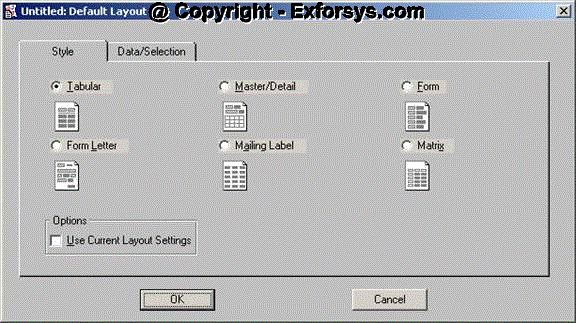
In the Style tab select ‘Tabular’ as the report style and Click Next
Ads
The Data tab allows creation of an SQL statement using Query Builder or to enter the SQL statement in the multi line edit box provided in the Data tab.
Click Next
Click Next
This will take you to the next tab if your SQL statement syntax is correct.
Fields tab is used to specify the fields that must be displayed in tabular format. Select all fields by clicking on >> icon.
Click Next
Click Next
The Totals tab is displayed that allows creation of Summary columns using aggregate functions.
This report does not include totals for the selected fields and thus Click Next.
The Labels tab is displayed that enable us to change the labels of the columns.
Click Next
The Templates tab is displayed that enable us to create report from templates. There are number of pre-determined templates available in Oracle Reports Builder.
This report does not include totals for the selected fields and thus Click Next.
The Labels tab is displayed that enable us to change the labels of the columns.
Click Next
The Templates tab is displayed that enable us to create report from templates. There are number of pre-determined templates available in Oracle Reports Builder.
Select Corporate 1 as the template. Click Finish
Click on File. Save to save the report, specify the report name and click OK.
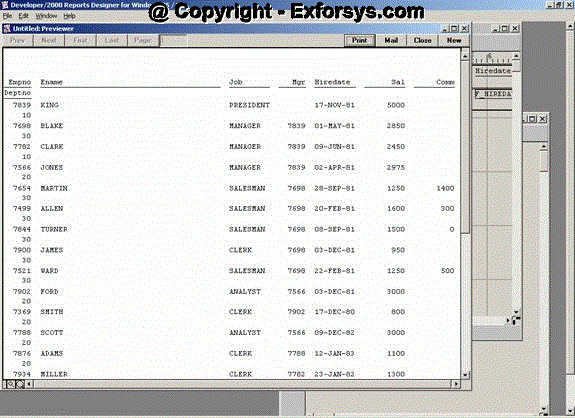
Run the report!!